

12 Jan 2025
Connecting Wiz to your Microsoft Azure Tenant
In today’s rapidly evolving cloud landscape, ensuring the security of your resources is paramount. Wiz is a powerful cloud security solution that provides deep visibility into your cloud environment, helping you identify and mitigate risks effectively. Integrating Microsoft Azure with Wiz allows you to leverage these capabilities and maintain a robust security posture. This guide walks you through the steps to seamlessly connect Azure with Wiz.
Step 1: Prerequisites
Before starting the integration process, ensure you have the following:
- Wiz Account: Access to a Wiz account with sufficient permissions to configure integrations.
- Azure Subscription: An active Microsoft Azure subscription where you have the necessary administrative rights.
Step 2: Deploying the Wiz Azure Connector
1) In Wiz, navigate to the Settings > Deployments page.
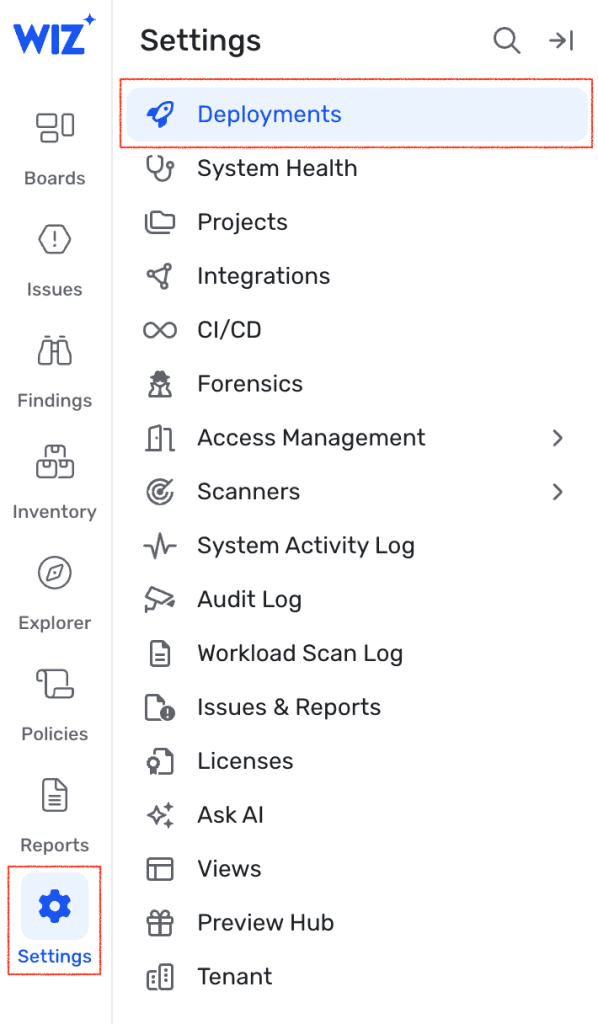
2) Click Add Deployment.

3) Select Microsoft Azure.
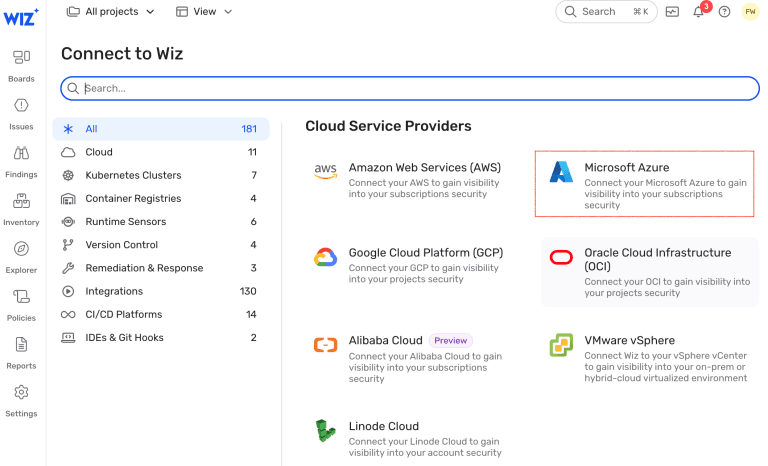
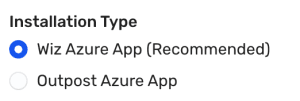
4) For Installation Type, leave Wiz Azure App selected.
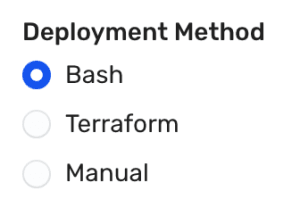
5) For Deployment Method, leave Bash selected.
6) For Azure Tenant ID, enter your Azure Tenant ID (refer to this post by Microsoft to find your Tenant ID)

7) For Connector Scope, in this example we will be selecting Subscription.

Wiz allows for the following Connector Scopes:
- Management Group: Automatically scans all subscriptions within the group, with optional integration to Microsoft Entra ID (AAD) for enhanced capabilities - this would be your typical selection
- Subscription: Scans only the selected subscription, with optional integration to Microsoft Entra ID (AAD).
- Microsoft Entra ID (AAD) Only: Scans only Microsoft Entra ID, focusing on principals without scanning any Management Group or Subscription resources.
8) For Subscription ID, enter your Subscription ID (refer to this post by Microsoft to find your Subscription ID)

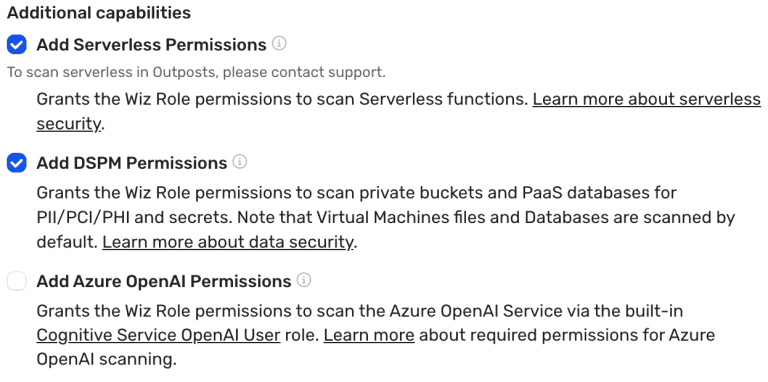
9) (Optional) You can choose to grant additional permissions to the connector for the following additional capabilities - serverless and DSPM are typically recommended unless you have specific reasons to exclude them.
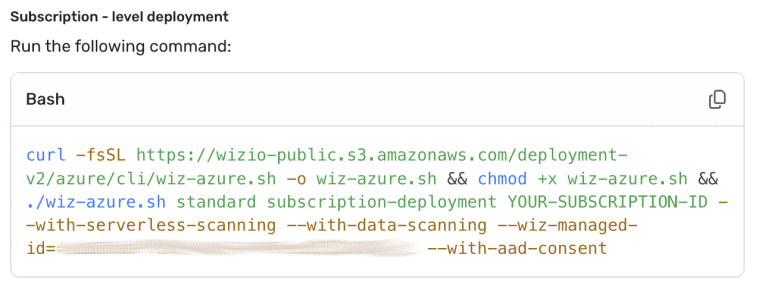
10) Copy the Bash command from the Wiz portal. (Leave the tab open; you'll come back to it soon)
11) In a new browser tab, log in to your Azure portal. Open Cloud Shell with Bash selected.
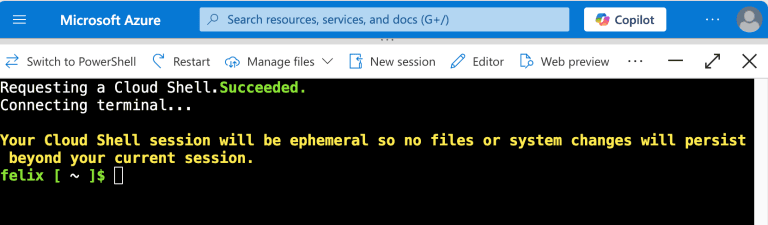
12) Run the Bash command copied from step 9. If prompted with, Is it okay to proceed?, enter y.
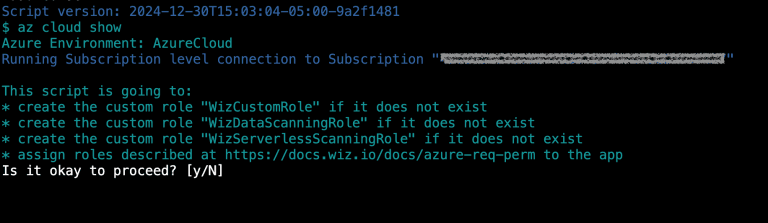
13) Once the script finishes successfully, return to the Wiz browser tab.

14) Below the Bash script, check Deployment script completed, ready to complete connector setup. And click Continue.

15) On the New Connector Details page, for Name, enter a display name that will be used for this Connector across the portal. Note that if you're connecting multiple Azure tenancies or subscriptions, you'll want to use a name that easily identifies the target tenant/subscription.

16) Click Finish. Your first scan will be initiated automatically. Wait until the status change to

Active (Note: It will take a few minutes for your resources to appear in Wiz due to the fetching and enrichment processes).
Step 3: Validate the Integration
- Once the Cloud connector is deployed, Wiz begins to scan the environment using its agentless read-only APIs approach.
- You will be able to navigate through the scan findings and details, as well as analyse and address issues identified by the workload scanner
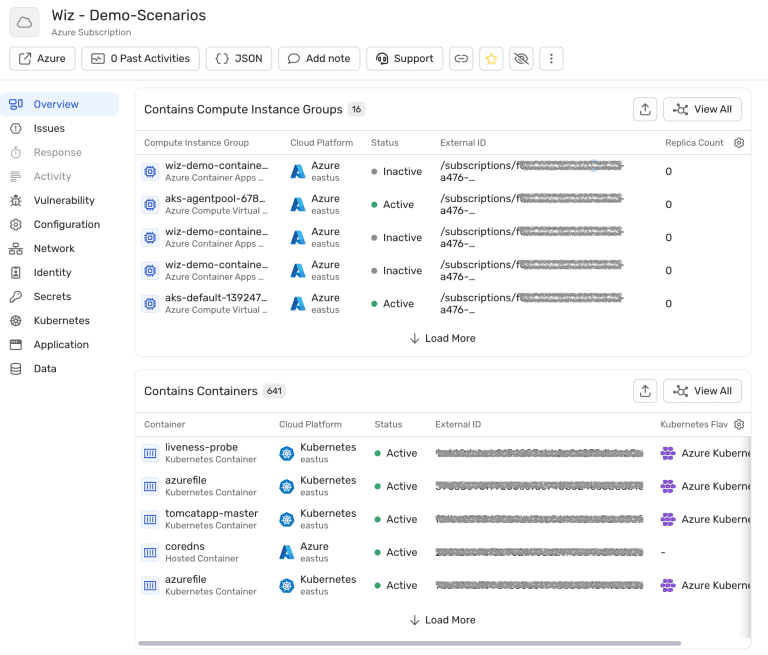
By integrating Microsoft Azure with Wiz, you gain comprehensive visibility and security insights into your cloud environment. This connection ensures continuous monitoring, enabling you to proactively address vulnerabilities and compliance risks. Follow these steps, and you’ll be on your way to enhancing the security posture of your Azure infrastructure.
In upcoming posts, we will share how to use Wiz to further improve security in your Azure tenant. Stay tuned!
Share
What We Believe


Peter

Peter