

18 Sep 2026
Passkeys in Island: Getting Entra ID to Actually Accept Them

Last time we wrote about what passkeys are, why Microsoft is retiring SMS and voice MFA on the 1st of February 2027, and the one Entra setting you should check before the auto-enrolment nudge reaches your users. This is the follow-up, and it's narrower on purpose.
A lot of our clients run the Island Enterprise Browser, and a lot of them want their staff to store their Microsoft passkey inside Island rather than in a personal iCloud or Google account. Sensible. The problem is that when you go looking for a guide on how to make Entra ID accept a passkey that Island created, you find plenty of "passkeys are supported" and not much "here is the identifier you need to paste into the allow list". So here it is.
Why put the passkey in Island at all?
Island already sits in the middle of how your users reach Microsoft 365. It authenticates the user, it holds the corporate password vault, and it enforces policy on every tab. A passkey stored in Island's password manager inherits all of that. It travels with the user across the devices where they're signed in to Island, it's governed by the same admin controls as the rest of the vault, and it never lands in a personal cloud account you don't manage.
It is still a synced passkey, which means the trade-offs from the last post apply. Entra cannot enforce attestation on it and the security of the credential is only as good as the security of the vault. For most staff that's a perfectly good position. For privileged accounts, keep using device-bound passkeys.
The bit nobody writes down: AAGUIDs
Every passkey provider stamps its credentials with an Authenticator Attestation GUID, or AAGUID. It's a fixed identifier that says "this passkey was created by iCloud Keychain" or "this one came from a YubiKey 5". Entra ID uses it to decide whether a passkey is allowed in your tenant.
If you're going to allow synced passkeys, you want to be deliberate about which providers you allow rather than opening the door to everything. Entra makes this easy for the big names: Microsoft Authenticator, iCloud Keychain and Google Password Manager can be picked from a list by name. Anything else, you need to type the AAGUID in yourself, and the Island one isn't listed anywhere in Microsoft's documentation.
These are the two we're adding most often, confirmed against credentials registered in real tenants:
Provider | Type | AAGUID
Island Enterprise Browser | Synced | 29e12836-cebd-487a-a524-92c714bb8bfd 1Password | Synced | bada5566-a7aa-401f-bd96-45619a55120d
One caveat worth understanding before you rely on it: the AAGUID is an honest declaration by the provider, not a cryptographic proof. Because synced passkeys don't support attestation, Entra takes the provider's word for it. Treat the allow list as a policy guardrail, not a hard security boundary.
Configuring Entra ID
You need an account with at least the Authentication Policy Administrator role. Everything below is in the Entra admin centre under Entra ID > Authentication methods > Policies > Passkey (FIDO2).
1. Check the method is enabled and self-service is on
Open Passkey (FIDO2) and confirm the method is Enabled. On the Configure tab, make sure Allow self-service setup is ticked. If that toggle is off, users get a registration prompt that silently goes nowhere. This is the failure we described in the last post and it's still the most common thing we find.
2. Create a passkey profile for synced passkeys
Still on the Configure tab, either edit the Default passkey profile or select + Add profile and give it a name your future self will thank you for, something like Synced passkeys - Island. Under Passkey types, select Synced, or Device-bound, Synced if you want one profile covering both.
Leave Enforce attestation unticked. Synced passkeys can't be attested, so a profile that allows them can't enforce it.
3. Restrict the profile to the providers you actually want
Tick Target specific AAGUIDs and set Behavior to Allow. Under Model/Provider AAGUIDs, select + Add AAGUID. The Microsoft, Apple and Google providers appear as named options, so pick Microsoft Authenticator for iOS and Microsoft Authenticator for Android if you're covering device-bound in the same profile. For Island and 1Password there's no named entry, so paste the GUIDs from the table above. A finished profile looks like this:
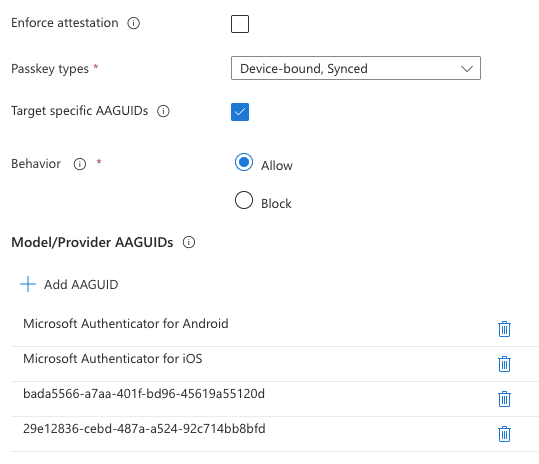
Save the profile.
If you leave Target specific AAGUIDs unticked, any synced passkey provider is accepted, including personal password managers and consumer cloud accounts. That may be what you want, but decide it rather than default into it.
4. Enable and target the profile
Go to the Enable and target tab. Confirm Enable is On, then Add target and choose the group you want in scope. Start with a pilot group, not All users. Against that group, select the profile you just created and Save.
A user can be scoped to more than one profile. Registration and sign-in succeed if the passkey satisfies any profile the user is scoped to, so if you already have a device-bound profile for the same group, both continue to work side by side. The one thing that overrides everything is the Exclude list on the policy: an excluded user is blocked from passkeys entirely, regardless of what profiles they'd otherwise match.
5. Quick sanity check from PowerShell
If you'd rather confirm the policy state without clicking around, this reads back the current FIDO2 method configuration:
Connect-MgGraph -Scopes "Policy.Read.All" Get-MgBetaPolicyAuthenticationMethodPolicyAuthenticationMethodConfiguration ` -AuthenticationMethodConfigurationId "Fido2" | ConvertTo-Json -Depth 10
You're looking for state: enabled, isSelfServiceRegistrationAllowed: true, and your new profile listed with the expected AAGUIDs.
Configuring Island
On the Island side, the password manager needs to be enabled for the users in scope and passkey storage needs to be allowed in the relevant policy. If your Island tenant already has the vault rolled out, there's usually nothing extra to do. If it doesn't, get the vault working first. A passkey with nowhere to live is a support ticket waiting to happen.
Testing it
Have a pilot user open Island, go to https://mysignins.microsoft.com/security-info, select Add sign-in method and choose Passkey. When the browser asks where to save it, Island should offer its own vault. Complete the gesture and you're done.
To confirm Entra recorded it correctly, open the user in the Entra admin centre, go to Authentication methods, and view the details of the new passkey. The AAGUID shown there should match the Island value in the table. If it shows something else, the passkey was saved somewhere other than Island, most likely the OS-level keychain, and the user should delete it and register again.
Then sign out and sign back in with the passkey. Then do it on a second device where the user is signed in to Island. If both work, the sync is doing its job.
The lockout you need to design around
Island itself signs the user in through Entra. If a user's only passkey lives inside Island, and Island needs Entra to unlock, you've built a loop. Lose the Island session on a new device and the user can't get to the passkey they need to get into Island.
The answer is the same one from the last post: sort out recovery first. Every user in scope should have at least one other strong method registered, most commonly a passkey in Microsoft Authenticator or a Temporary Access Pass process your service desk can actually run. Test the recovery path with the same rigour as the happy path, because the happy path isn't the one that generates tickets.
Also note that if you later disable synced passkeys on the profile, users who already registered one stop being able to sign in with it. Don't toggle it off to "see what happens" in production.
Need help getting this in before February?
The dates haven't moved. Auto-enrolment nudges started on the 1st of September, and Microsoft-provided SMS and voice MFA are gone on the 1st of February 2027. If you're running Island and want your passkey rollout to land inside the browser you already govern, rather than in whichever consumer cloud your users happen to be signed in to, we've done this a few times now and are happy to help you do it on your timetable rather than Microsoft's.
Share
What We Believe


Peter

Peter